How to Log In with an Overseas Apple ID After Buying? 2026 5 Common Beginner Mistakes
How to Log In with an Overseas Apple ID After Buying? 2026 5 Common Beginner Mistakes
A lot of people — after they buy an overseas Apple ID — they don't know how to log in.
Either they log in the wrong place, or they do it wrong, or the account has problems, or they lose data. All kinds of pitfalls, all kinds of trouble.
Actually, logging in is simple — but beginners easily fall into traps. One careless move — at best you lose the account, at worst you lose all the data on your phone.
In this article, I'm talking about how to correctly log in after you buy an overseas Apple ID — and the 5 most common mistakes beginners make. After reading this — you can avoid all the pitfalls and log in safely.
Here's the short version: Logging in isn't hard — but you have to do it the right way. Remember a few key points — and you can avoid 99% of the pitfalls.
Mistake #1: Signing into iCloud Instead of the App Store
First mistake — and the most serious one — signing into iCloud instead of the App Store.
A lot of beginners — after they buy one — they just sign into their Apple ID in Settings, which means signing into iCloud. This is the most dangerous thing you can do.
Why is it dangerous? Because if something goes wrong with the account — like it gets locked, it gets banned, the seller recovers it — then all the data on your phone — photos, contacts, notes, everything — could be affected. In severe cases — your phone could even get locked, become a brick.
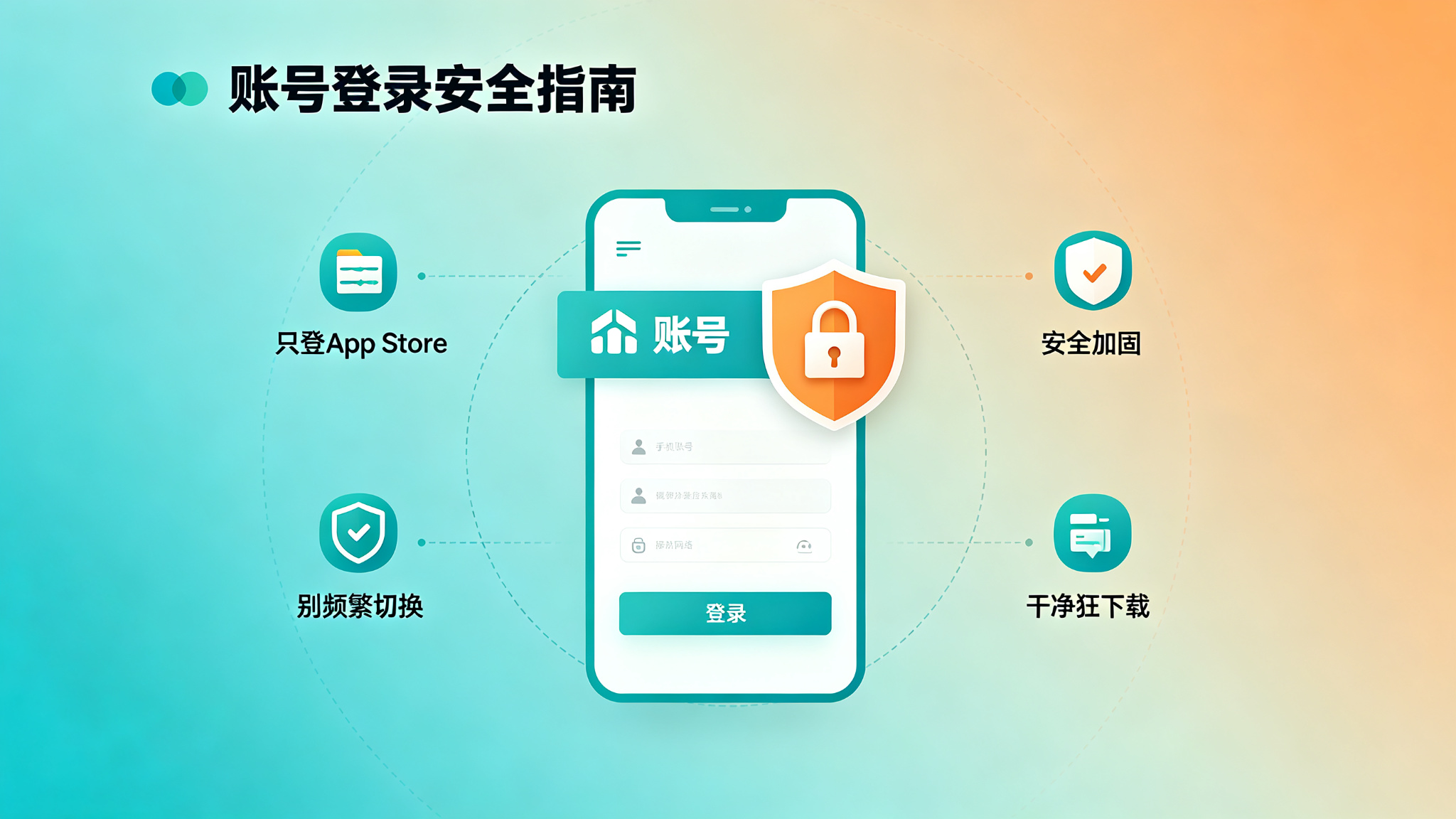
What's the correct way? Only sign into the App Store. Don't sign into iCloud.
How do you do it? It's simple:
Open the App Store, tap the profile icon in the top right corner, scroll down, find "Sign Out," and sign out of your current China-region ID. Then enter the overseas ID and password you bought, and sign in. That's it.
When you log in this way — you're only using this account in the App Store to download apps. iCloud still uses your own China-region ID. Photos, contacts, data — none of it is affected. If something goes wrong with the overseas ID — it won't affect the rest of the data on your phone.
People always ask: What about FaceTime and iMessage? Should I sign into those? No — don't. Those are also tied to iCloud. Don't sign into those. Just sign into the App Store to download apps. Everything else — use your own China-region ID.
Remember this rule: Only sign into the App Store, don't sign into iCloud. This is the most important one — and the most common pitfall.
Mistake #2: Using It Right Away Without Security Hardening
Second mistake — using it right away after you get it, without doing security hardening.
A lot of people — after they buy it — they just change the password and that's it. Or they don't even change the password — they just use it as-is. That's dangerous.
Why? Because the seller registered the account — all the registration info is in the seller's hands. The seller can recover the account anytime. Even if you changed the password — the seller can recover it through the registration info.
So — the first thing you do after you get the account — is security hardening. Change all security info to your own. That way — the account is truly in your hands. The seller can't get it back.
What do you need to do for security hardening?
First: Change the password. This is the most basic. Change it to your own password. Don't use the default password the seller gave you.
Second: Change security questions. Change the security questions to your own too. Don't use the default ones. Otherwise the seller can recover the password through the security questions.
Third: Change the rescue email. Change the rescue email to your own too. Otherwise if you forget the password, or the account has problems — you won't get the verification email.
Fourth: Enable two-factor authentication. This is the most important one. With two-factor authentication — when you log in — you need a verification code in addition to the password. The code goes to your own phone or device. That way — even if the seller knows the password — they can't log into your account. This is the safest way to protect your account.
After you do all these steps — the account is truly in your hands. The seller can't get it back. Nobody can steal it. Way safer.
A lot of people think it's a hassle, they don't want to do it. But compared to losing the account — is this hassle really that bad? Security first. Don't skip these steps.
Mistake #3: Switching Accounts Frequently, or Logging Into Multiple at Once
Third mistake — switching accounts frequently, or logging into multiple accounts at once.
Some people — they buy accounts for several regions — US, Japan, Korea — they switch back and forth, several times a day.
This can easily trigger Apple's fraud detection. Apple's system will think the account is abnormal — might restrict login, or even ban the account outright.
What's the correct way?
First — don't switch too frequently. Switching once or twice a day — no big deal. But if you switch too often — it's easy to have problems.
Second — when switching — sign out normally, then sign into the other one. Don't just switch directly. Sign out of the current one first, then sign into the other one.
Third — keep your network environment stable. Don't use this network one minute, that network the next. Don't switch between domestic and overseas networks all the time. Big changes in network environment — also easy to trigger fraud detection.
Actually — the best way is — on each device — mainly use one account. Other accounts — use them occasionally, switch once in a while. Don't switch back and forth nonstop.
A lot of people think — switching accounts is normal, no big deal. But Apple's fraud detection system — it doesn't see it that way. Too many abnormal operations — and you get flagged.
With normal use — switching a few times — no problem. But don't do it too often, don't be reckless. Better safe than sorry.
Mistake #4: Downloading Apps Like Crazy Right After You Get It
Fourth mistake — right after you get the account — you download apps like crazy.
Some people — they finally have an overseas ID — they're so excited — they download dozens of apps all at once. Everything they've been wanting to download.
This can also easily trigger fraud detection. New account — suddenly downloading so many apps — the system will think it's abnormal. Might restrict downloads, or even ban the account.
What's the correct way? Take it slow.
First day — download a few commonly used ones. Use them for a bit. Use them normally. After a few days — then slowly download the rest.
Just like if you registered it yourself. Use it normally. Download slowly. Don't download too many at once. Don't go crazy.
A lot of people think — it's my account, I can download as many as I want, what's the problem? But Apple's fraud detection system — it doesn't see it that way. New account, abnormal download volume — that's suspicious.
Actually you don't have to be too careful. Just download normally. Don't download dozens all at once. Download a few a day, use them for a few days, then download a few more — that's fine.
Take it slow, take it steady — and the account will last longer. Being too hasty — actually more likely to have problems.
Mistake #5: Using an Unclean Network, or Doing Things That Violate the Terms
Fifth mistake — using an unclean network, or doing things that violate the terms.
What's an unclean network? Networks that lots of people share, or networks that are often used for black market stuff. Like some cheap VPN services, some shared proxy IPs.
These networks — maybe lots of people used them for violations before — the IP is already flagged by Apple. If you log in with this kind of network — it's easy to trigger fraud detection. The account can have problems.
And then there's doing things that violate the terms. Like using this account for app store manipulation, black market stuff, things that violate Apple's terms of service. Those — getting banned is instant.
What's the correct way?
First — use a clean network. Preferably your own usual network. Stable, clean. Don't use those sketchy networks.
Second — use it normally. Just like you would with your own account. Download apps normally. Use them normally. Don't do anything that violates the terms. Don't do sketchy stuff.
Third — don't use it for commercial purposes. Like bulk registration, bulk downloads, fake reviews, etc. Those are all violations — easy to get banned.
With normal use — a legitimate exclusive account — can last for years. Most problems — people bring them on themselves.
A lot of people think — I paid for this account, I can use it however I want. That's true — but if you violate their rules — they have the right to ban your account. Rules are rules. Can't help it.
Correct Login Steps (Full Version)
After all those mistakes — what are the correct login steps? I put together a full version. Just follow it:
Step 1: After you get the account — do security hardening first. Change password, security questions, rescue email, enable two-factor authentication — all of it, set to your own info. This step is the most important. Don't skip it.
Step 2: Open the App Store, sign out of current account. Open the App Store, tap the profile icon in the top right, scroll to the bottom, tap "Sign Out," sign out of your current China-region ID.
Step 3: Sign in with the overseas ID. Enter the overseas ID account and password. Sign in. If there's two-factor authentication — enter the verification code.
Step 4: Verify the region is correct. After you sign in — search for an app, see if it's the right region. Double-check — make sure you didn't log into the wrong one.
Step 5: Download apps slowly. Download a few commonly used ones first. Use them for a bit. After a few days — slowly download the rest. Don't download too many at once.
Step 6: Use it normally. After you download them — use them normally. Don't switch accounts too often. Don't do anything that violates the terms.
That's it. Just a few steps. Simple. Follow them — and you basically won't have problems.
What If Something Goes Wrong?
What if — and I'm just saying if — something goes wrong with the account? What do you do?
First — don't panic. First figure out what the problem is. Wrong password? Account locked? Banned?
If the password is wrong, or the account is locked — contact the seller first. If you're still within the warranty period — sellers will generally help you, replace the account or refund you.
If you can't reach the seller, or they won't help you — then it depends on where you bought it. If you bought it on Taobao — you can contact Taobao customer service to intervene. If you're still within the after-sales period — they might help you get a refund.
If the account just got flagged — not banned — you can try appealing. Gather your purchase records, usage records — email Apple support, explain the situation. There's a chance you can get it back — but not 100%.
If it got banned — then it's basically done. Just buy a new one. Be more careful next time.
That's why finding a reliable channel is so important. Fixing it after the fact — it's often too late.
Final Thoughts
After you buy an overseas Apple ID — logging in is actually simple.
But beginners easily fall into traps. One careless move — at best you lose the account, at worst you lose data.
Remember a few key points: Only sign into the App Store, don't sign into iCloud. Do security hardening after you get it. Don't switch accounts too often. Don't download apps like crazy. Use a clean network. Use it normally.
Remember these points — and you can basically avoid 99% of the pitfalls.
Actually you don't have to be too nervous. With normal use — a legitimate exclusive account — can last for years. Most problems — people bring them on themselves.
Take it slow, take it steady. Security first. Then the account will last longer, and you can use it with peace of mind.
If you're just a casual personal user — find a reliable established store on Taobao, good value for money. If you're running projects or a business and you need high stability — go straight for a legitimate platform, like Getfollow. Yeah, it costs more — but it's reliable, stable, and there's after-sales support. When the account dies and you lose progress — that costs way more than the account ever did.
And as always: Start small, test first, then scale up. No matter how good the seller sounds, don't buy in bulk on your first try. Slow and steady always wins.